
Understand and learn how to use Assets Swimlanes in Time Squad.
Assets Swimlanes group events by the Assets field in your Jira Issues Calendars or Assets Calendars. For more details on how Swimlanes work, refer to the Working with Swimlanes article.
Using Assets Swimlanes
You can rearrange Assets Swimlanes using drag-and-drop functionality to customize the event display.
Important
To reorder Assets Swimlanes, enter Edit Mode by selecting the Edit button. This function is only available to Timeline Owners.
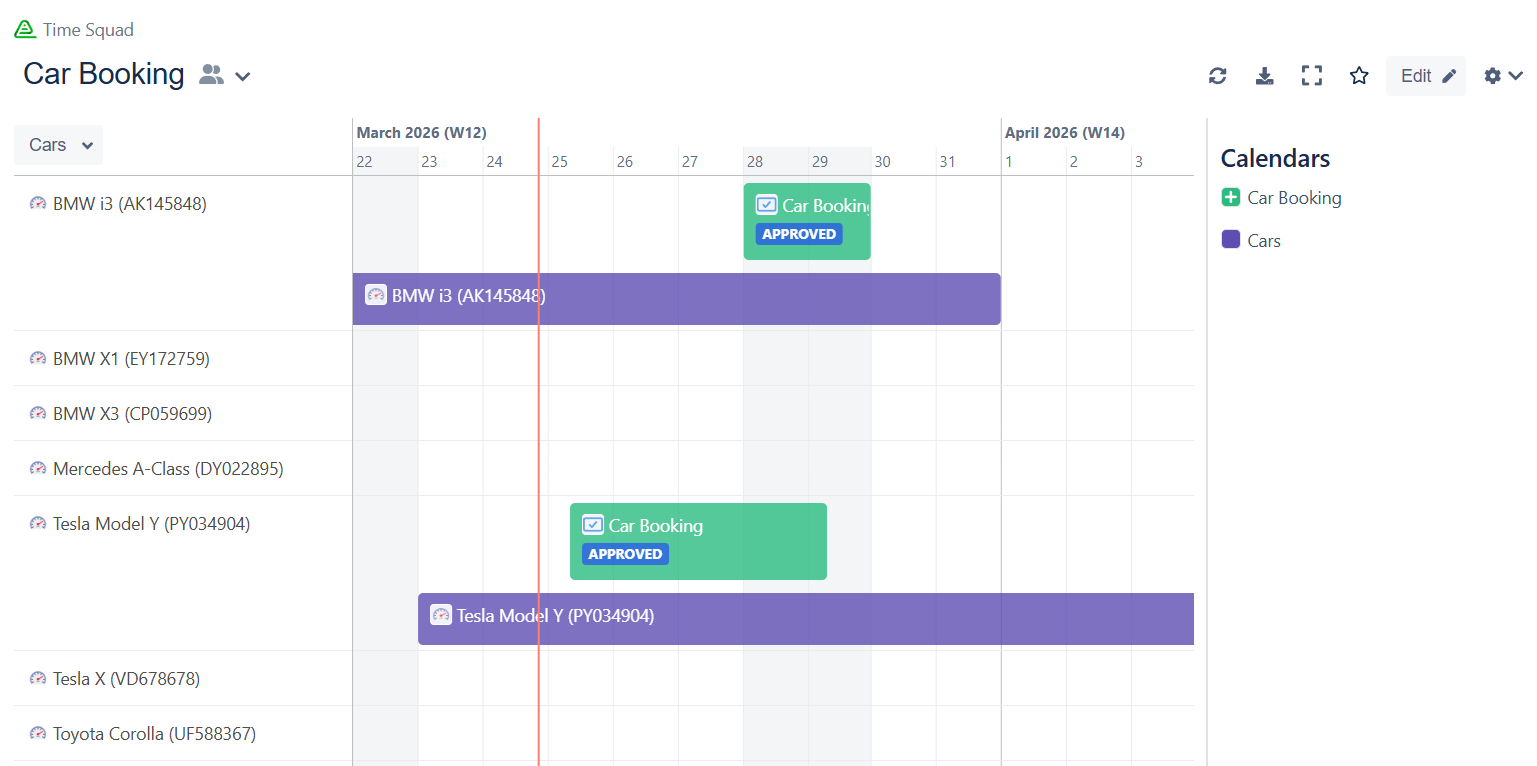
Customizing Assets Swimlanes
Requirements
-
To customize Assets Swimlanes display settings, you must be a Timeline Owner.
Steps
-
Access the Timeline you want to customize.
-
Click Edit to enter Edit Mode.
-
Click the Swimlane Selection (downward arrow) under the Quick Filters.
-
Select the Swimlane you want to edit.
Tip
If no Assets Swimlane is available, click + More and create a new Assets Swimlane.
-
Click the gear icon next to the Swimlane Selection menu to open the Edit Swimlane Configuration dialog.
-
Modify the following settings as needed:
-
Object Schema: Select the Asset Schema.
-
Object Type: Select the Asset Object Type.
-
Filters Assets by:
-
Object Filter (AQL): Select specific Jira project(s).
-
Hide ‘None’ swimlane: Display or hide the ‘None’ swimlane that contains all events that are not mapped with any swimlane.
-
Hide empty swimlanes: Display or hide all empty swimlanes.
-
-
Group & Sort Assets:
-
Sort: Select the sorting method (Manually or By Label).
-
Order: Specify the display order (Ascending or Descending).
-
-
Click Done to save the changes.